
With a hardware keyboard on the iPad, hold ⌘ anywhere in the app and iPadOS lists every shortcut, grouped into File, Edit, View, Tools, Schematic, PCB and Help. On iPadOS 26 the same menus are in the menu bar: swipe down from the top edge, or move the pointer to the top. The same list is in the app: Settings → Keyboard shortcuts, or ⌘K “Keyboard shortcuts”.
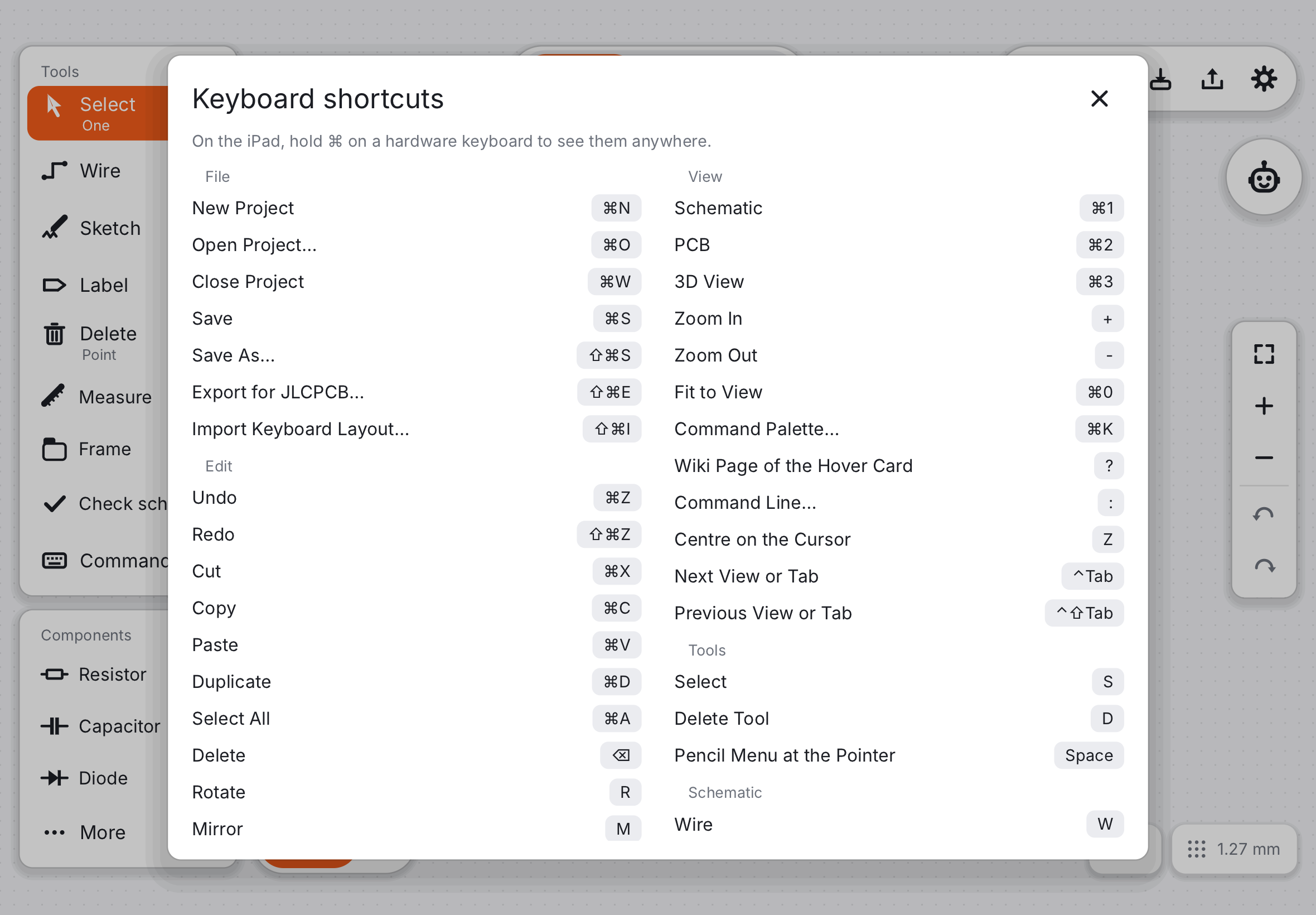
The ones to learn first#
| Key | Does |
|---|---|
| ⌘K | Command palette: every action by name |
| / | Command palette, empty; typing a letter that is not a tool key opens it with that letter |
| ⌘Z / ⇧⌘Z | Undo / redo |
| S | Select tool |
| W | Wire (schematic) |
| L | Label (schematic) |
| P | Library… (schematic) |
| X | Track (PCB) |
| V | Via (PCB) |
| D | Delete tool: tap or drag across things to delete them |
| ⌘1 / ⌘2 / ⌘3 | Schematic / PCB / 3D |
| ⌘0 | Fit to view |
| Esc | Cancel, close a panel, deselect |
| ⌘D | Duplicate the selection (schematic) |
| ⇧⌘D | Check rules |
| ⇧⌘R | Check schematic |
| ⇧⌘E | Order review and export |
Standard iPad and Mac keys#
These mean what they mean in every app:
| Key | Does |
|---|---|
| ⌘F | Find: the command palette’s search |
| ⌘, | Settings |
| ⌘W | Close the project (back to Projects) |
| ⌘N / ⌘O / ⌘S / ⇧⌘S | New / open / save / save as |
| ⌘X / ⌘C / ⌘V / ⌘A | Cut / copy / paste / select all (schematic) |
| ⌘/ | This list of shortcuts |
| ⌘? | The user guide |
| ⇧⌘I | Import a keyboard layout (KLE) |
Since October 2026 checking the rules is ⇧⌘D (⌘D duplicates, as everywhere on the iPad and the Mac), checking the schematic ⇧⌘R and the order review ⇧⌘E.
Working from the keyboard#
The mouse and the keys move one cursor: aim with the mouse and press Enter, or do it all from the keys. While the keys drive it, a small reticle marks the cursor and a line above the bottom bar shows the keys that act now.
| Key | Does |
|---|---|
| ← → ↑ ↓ | Move the cursor one grid step (⇧: ten) |
| ⌘ + arrow | Jump to the next pad, pin or track end in that direction |
| Enter | Click at the cursor: select, place, start a track or wire, add a corner |
| Tab / ⇧Tab | Select the next / previous object under the cursor |
| ⌘Enter | Place the last part again at the cursor (schematic) |
| Z | Centre the view on the cursor; + and − zoom at it |
| [ / ] | Previous / next copper layer (while routing: a via there) |
| ⌫ | While routing: take back the last segment |
| ⌃Tab / ⌃⇧Tab | Next / previous tab of the open panel, otherwise Schematic → PCB → 3D |
| ⇧⌘[ / ⇧⌘] | Previous / next schematic sheet |
| : | Command line: :autoroute, :drc, :w (save), :q (close), or any command such as :part add Device:R at 50,30 |
Vim keys (View → Vim Keys, off by default): h j k l move the cursor like the arrows, and Label moves from L to N.
Small helpers#
- R rotates and M mirrors the selection; ⌫ deletes it.
- / while routing a track flips which leg is diagonal.
- ? while a hover card is shown opens its wiki page.
- Space opens the Pencil menu at the pointer (Mac, or iPad with a mouse).
- Hold Option over copper to highlight its net.
Letter keys do nothing while you type in a text field, so typing an “s” in a search never switches tools.
Next: Sending feedback.