
PCB Canvas is in a closed alpha. You are one of the first people to use it, and every report helps, even “I did not understand this button”.
Sending feedback#
Open the settings (the sun button in the top right pill) and tap Send feedback…, or use ⌘K “Send feedback…”. About PCB Canvas has the same button.
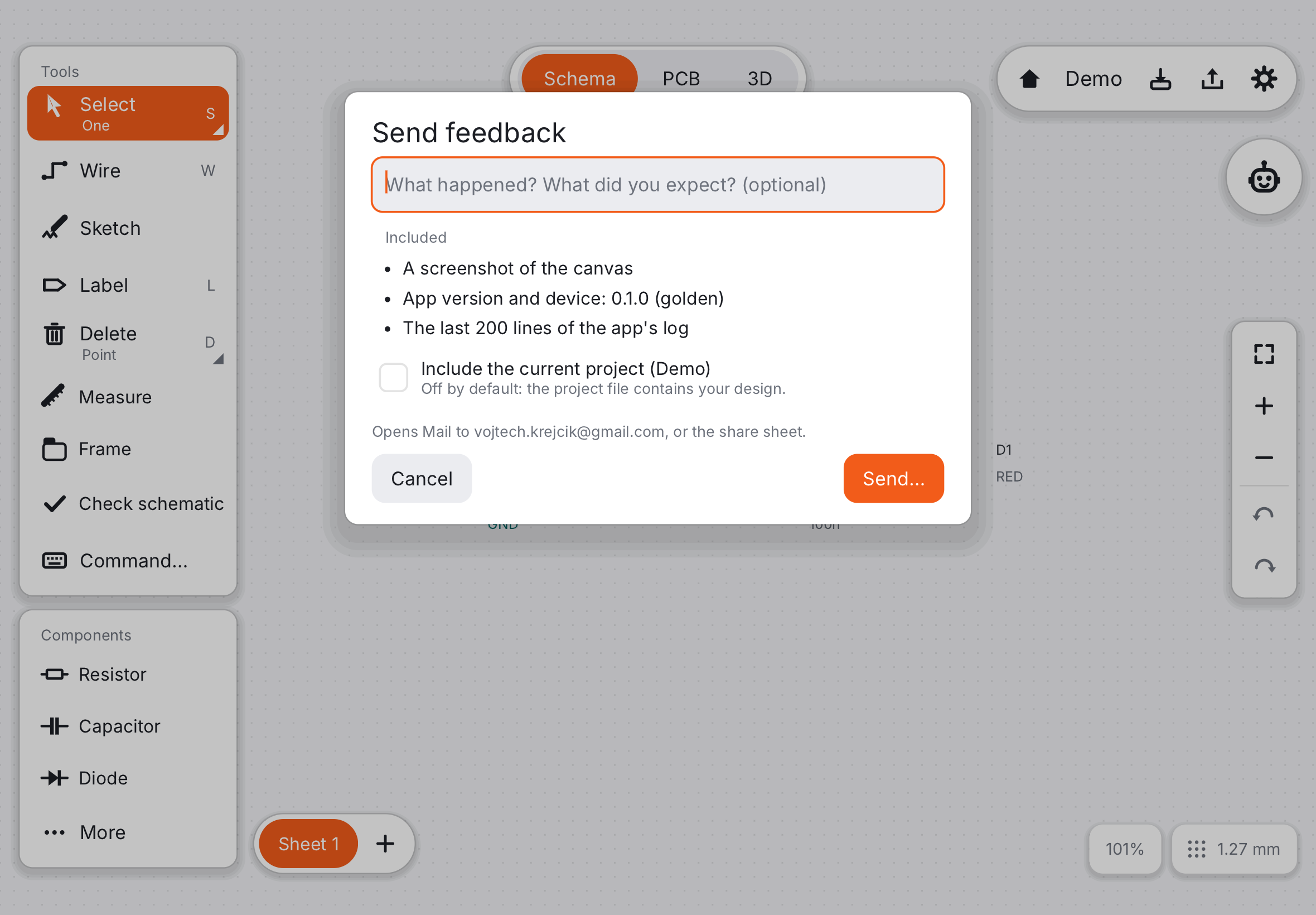
Write a few words: what you did, what you expected, what happened. The app prepares a zip with:
- a screenshot of the screen as it was,
- the app version and your device,
- the last lines of the app’s log,
- crash reports, if there were any,
- your project, only if you tick it. It is off by default because it contains your design.
You see the list before anything is sent. Then the mail sheet opens (or the share sheet, if mail is not set up); you can still change or cancel the message there.
After a crash#
If the app closed unexpectedly, a card offers to send the crash report the next time you open it. Your work is safe: autosave offers to restore it on the projects screen.
Good reports#
- One problem per report.
- Steps to make it happen again, if you know them.
- Tick “Include the current project” when the problem is about your board, so we can see it exactly.
- TestFlight’s own feedback (a screenshot on the iPad) reaches us too.
Thank you for testing. Back to the start of the guide.