
A project is one .pcbcanvas file: the schematic, the board, the part choices and the undo history. It is plain text, so it also works well with git.
Saving and opening#
- Save (⌘S) saves into the app’s folder, “PCB Canvas” in the Files app (On My iPad), unless the project already lives elsewhere.
- Open… (⌘O) shows the file picker. Projects in iCloud Drive or another provider are opened where they are and saved back there, so the same file can be on your Mac too. A file not downloaded yet downloads first.
- Tapping a
.pcbcanvasfile in the Files app opens it in PCB Canvas. - Save As… (⇧⌘S) makes a copy under a new name.
If the file changed on another device while it was open, saving asks before it overwrites.
Autosave#
The app keeps a copy of your work while you draw and when it goes to the background. If it was closed unexpectedly, the projects screen offers to restore that copy.
The projects screen#
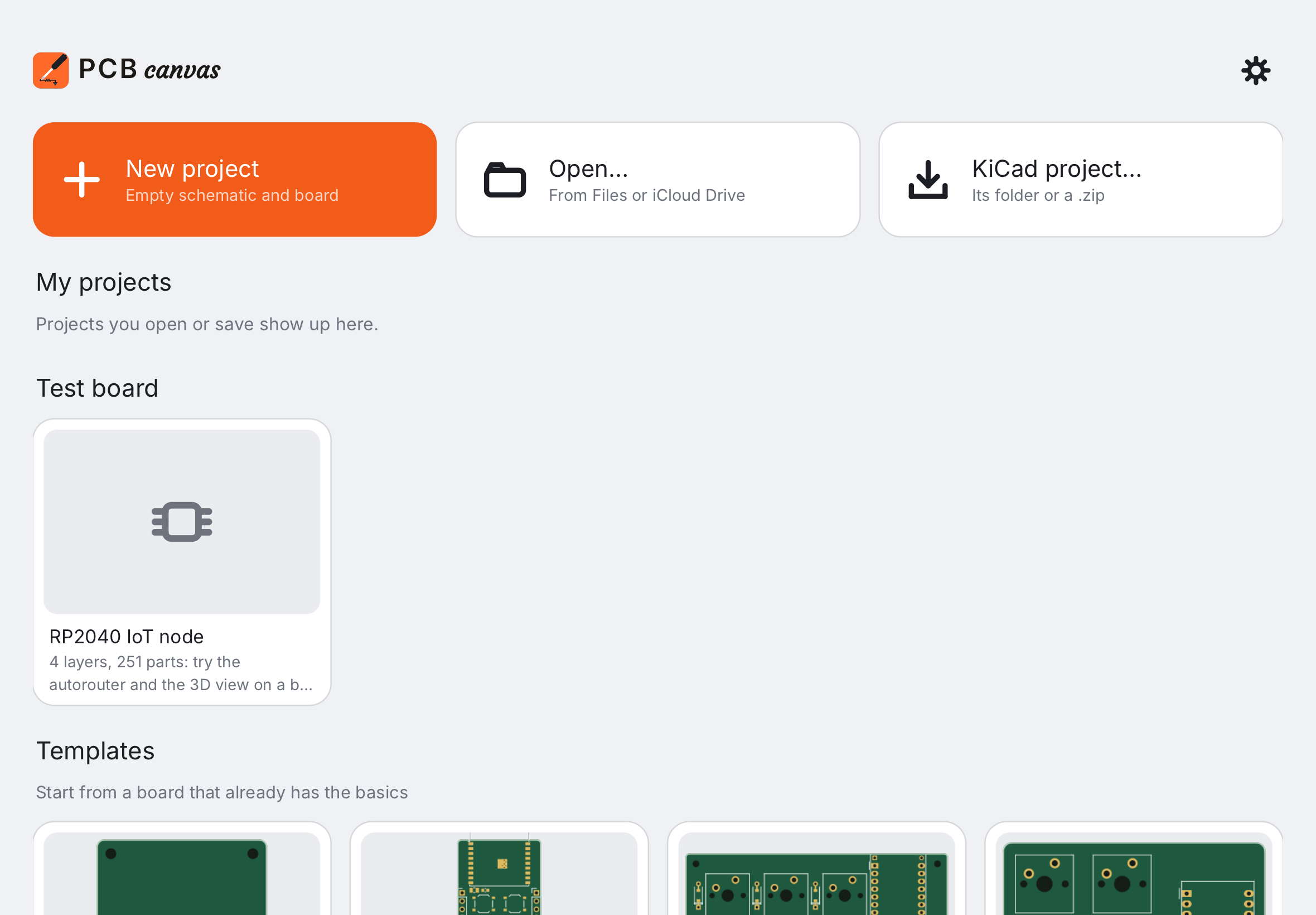
Tap the house in the top right pill. Recent projects show a picture of the board. Press and hold a card (or right-click) to open, duplicate, rename, show in Files or remove it from the list. Templates start new projects from a working circuit.
Export#
- Export for JLCPCB (⇧⌘E): Gerber, drill, BOM and CPL through the order review. See Ordering at JLCPCB.
- KiCad project… in the export sheet: the schematic and the board as a KiCad project, to continue in KiCad.
- Schematic PDF… in the export sheet: one page per sheet, to print or share.
- In 3D mode, Export 3D…: STEP for CAD, STL or 3MF for a 3D printer, USDZ to see the board in AR, GLB for the web.
On the iPad, exports go to the “Exports” folder in the app’s folder and the share sheet opens.
Dropping files#
Drag files from Files or another app onto the canvas: a project opens, a KiCad library is imported, a pack is installed.
Next: Keyboard shortcuts.