
On the iPad the two hands have different jobs, like in Shapr3D:
- The Pencil draws. It drives every tool: places parts, draws wires and tracks, drags things, draws a selection rectangle.
- Fingers navigate. Drag with one finger to pan, pinch to zoom. A short tap with a finger selects or clears the selection, but it never draws or moves anything.
- Two-finger tap undoes, three-finger tap redoes.
Without a Pencil, fingers do everything. The split starts the moment the app sees a Pencil, and a short message tells you so. In the settings, “Pencil only draws” can be set to Auto, Always or Off.
Hover#
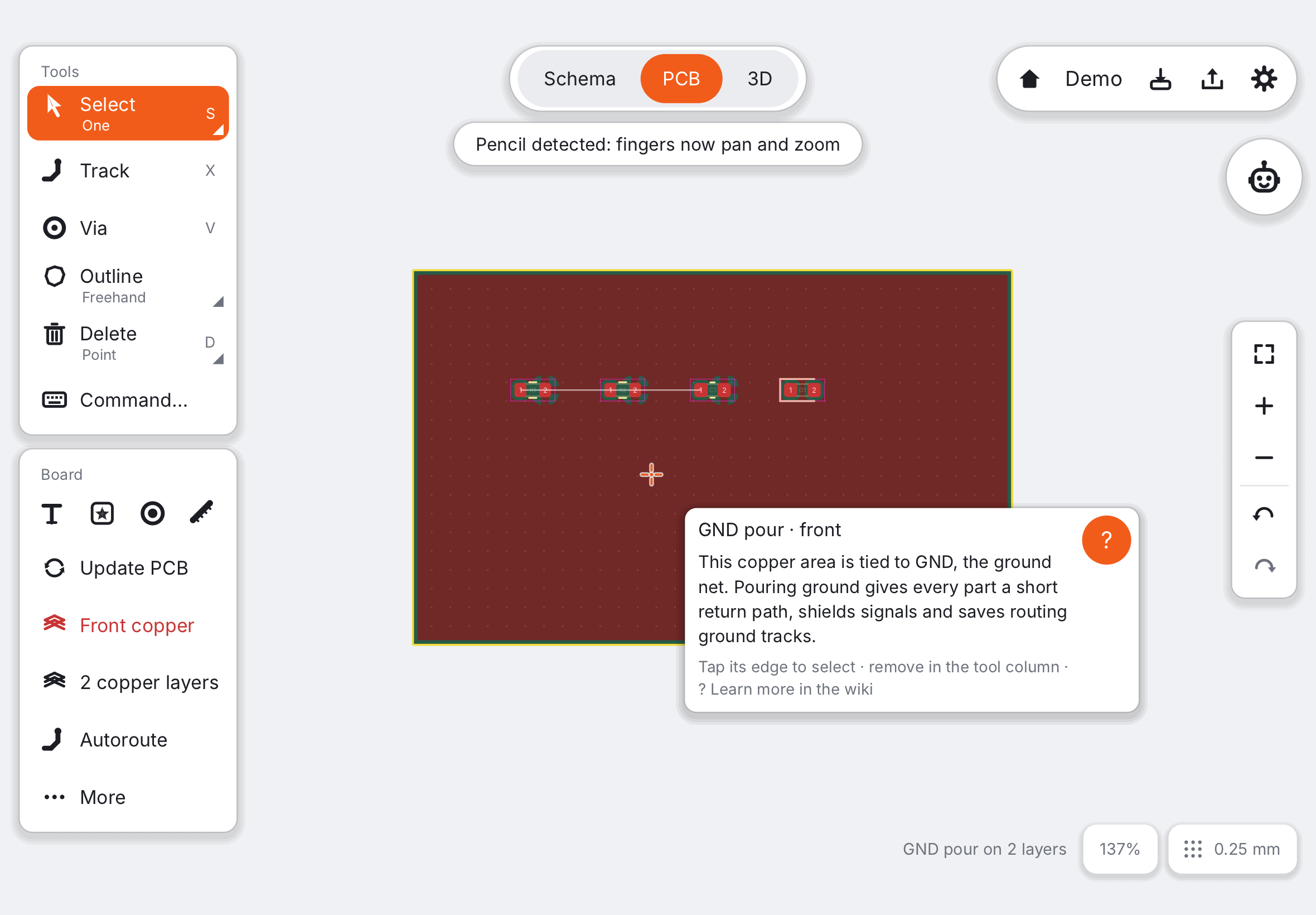
Hold the Pencil just above the glass. A cross marks the exact point the tool will use, snapped to the grid, a pin or a pad. After a moment a hover card explains what is under the tip: a part, a pin, a net, a pour. Press ? on a keyboard to open the wiki page about it.
Squeeze menu (Apple Pencil Pro)#
Squeeze the Pencil Pro and a half ring of actions opens around the tip: Rotate 90°, 180° and 270°, Mirror, Duplicate and Delete. They act on the selection, or on the last part you selected or placed; its name is shown under the tip. Tap an action with the Pencil; a tap anywhere else closes the menu. On the board, Mirror becomes Flip side.
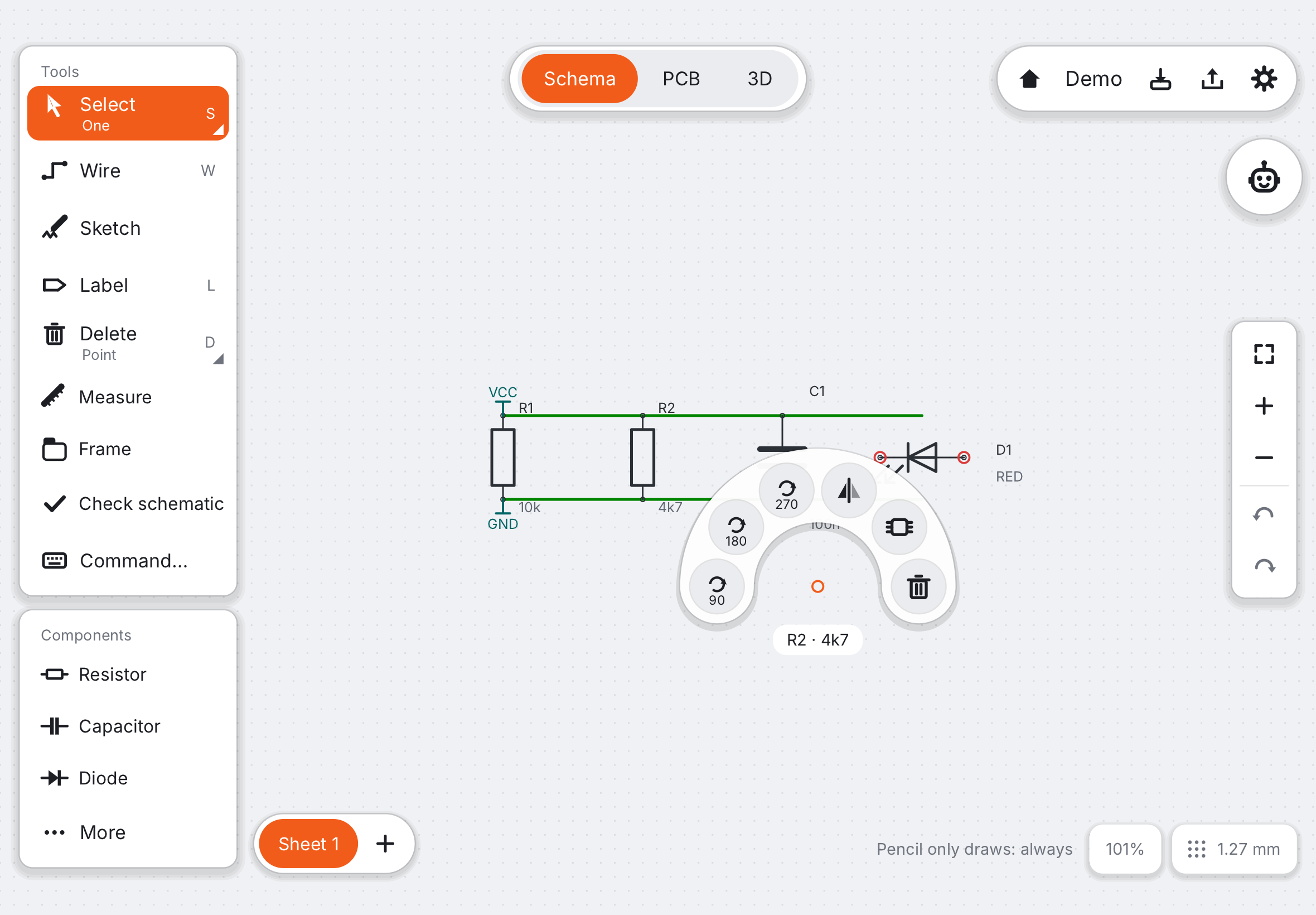
On a Mac (or an iPad with a keyboard and a mouse), Space opens the same menu at the pointer.
Barrel roll#
The Pencil Pro reports how you turn it in your fingers. The hover cross turns with it, so you always see that the Pencil is tracked.
Selecting several things#
Tap Select once more while it is the tool, and a small menu slides out over the other tools: One or Multiple. The Select row shows your choice (and a small triangle: there is more), and the choice stays. With One, a tap selects just that part or wire, so you can move one thing and then the next. With Multiple, a tap adds to the selection and a second tap takes it out again. A tap on empty canvas clears it either way. With the Pencil, drag from an empty spot to draw a rectangle. With a mouse, hold Shift to add. To delete several things quickly, pick Delete in the tool column and tap them or drag across them.
Next: Your first board in 10 steps.