
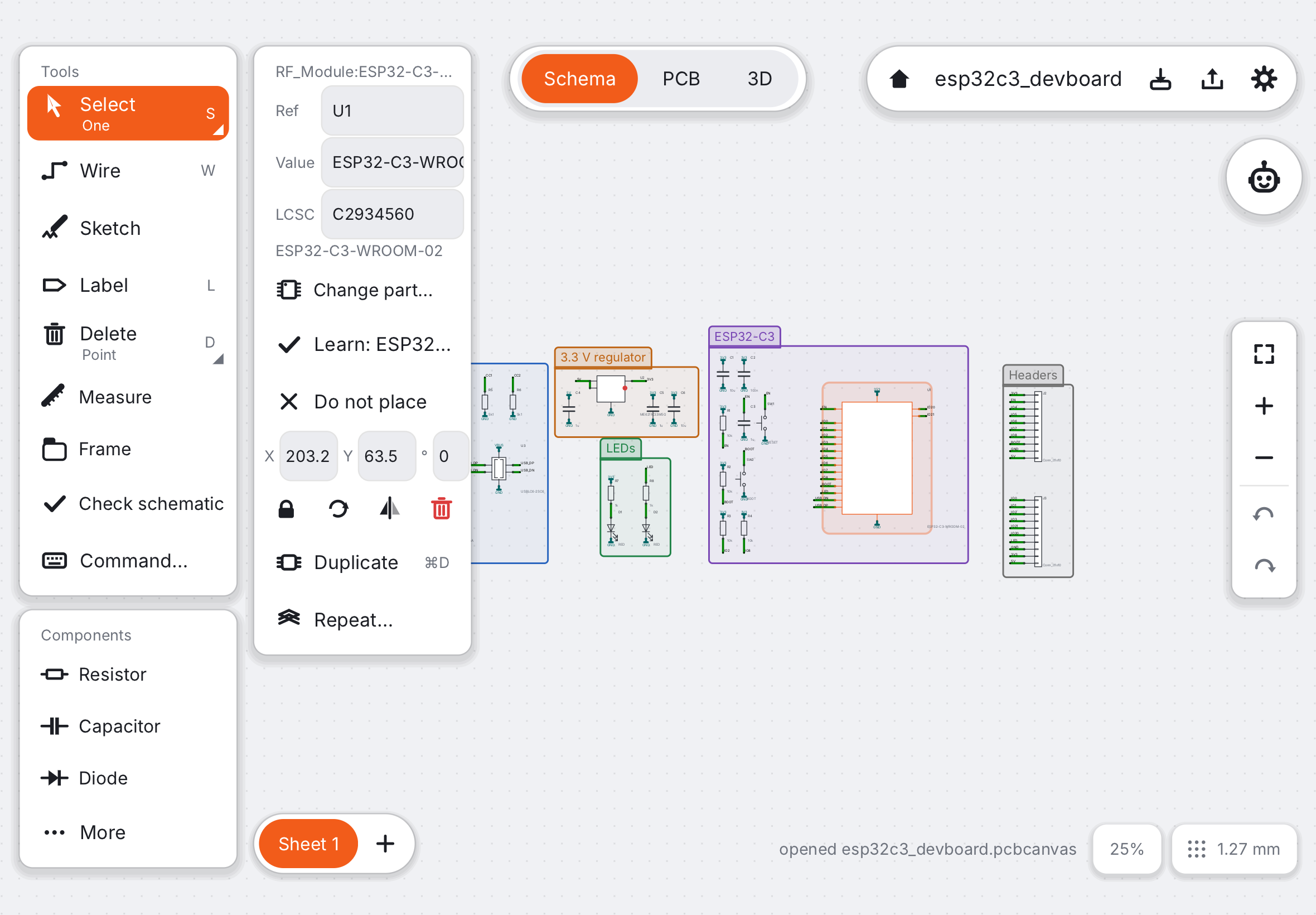
PCB Canvas has one screen for everything. The drawing fills it; the controls float around the edges and get out of the way on a small window.
Three modes#
The switch at the top picks what you work on:
- Schematic is the circuit: which parts you use and how their pins connect. You draw it first.
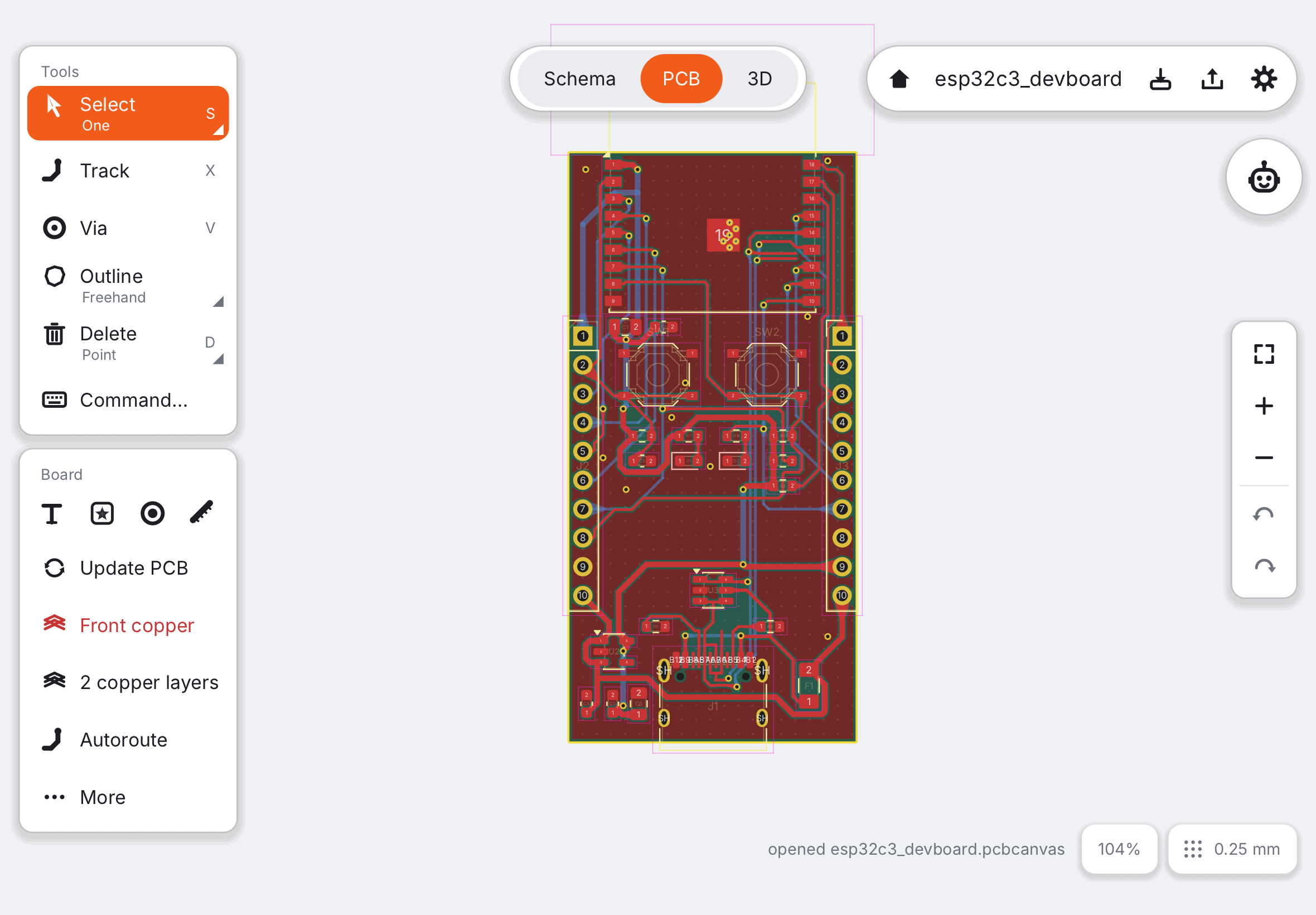
- PCB is the board: where the parts sit and the copper tracks between them.
- 3D shows the finished board with real part models, and exports 3D files.
The schematic and the board are separate drawings. When you change the schematic, the PCB mode marks Update PCB in amber until you press it. Nothing changes on the board behind your back.
The tool column#
The column on the left holds the tools of the current mode. In the schematic: Select, Wire, Sketch, Label, Measure, Frame, Check schematic, then the Components (resistor, capacitor, LED…) and the libraries. On the board: Select, Track, Via, Outline, then the Board section with Update PCB, the copper layer, Autoroute, Check rules, pours, Board setup and Build it. When the window is short, the rest waits behind More.
The inspector#
Select something and its properties appear next to the column: reference, value, the JLCPCB part number, and buttons to rotate, mirror, duplicate or delete it. The column itself never changes with the selection.
Top right and right edge#
The pill at the top right takes you to your projects, shows the project name, saves, opens the order review and opens the settings (theme, hover hints, language, this guide). The column on the right edge fits the view, zooms, and has undo and redo.
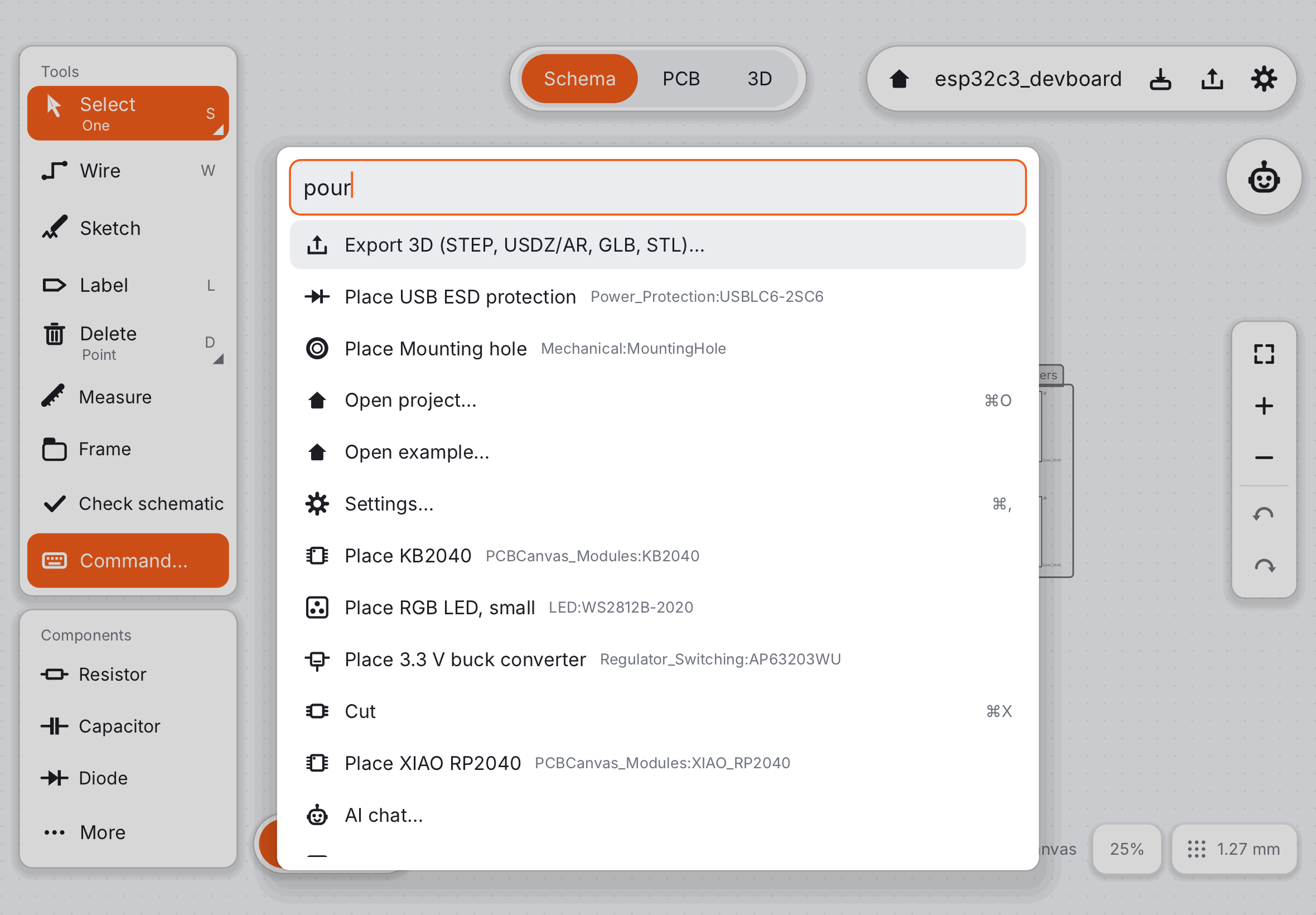
Command palette#
Every action has a name. Press ⌘K or /, or just start typing on a keyboard, and type a few letters: “pour”, “drc”, “wiki”. Without a keyboard, tap Command… at the end of the tool column. Diacritics do not matter. The same popup takes text commands such as part add Device:R at 50,30, with completion (Tab), the syntax and, when a command fails, the reason right under it.
Hover hints explain whatever is under the Pencil or the pointer. Choose Beginner, Expert or Off in the settings. Next: Pencil and fingers.