
When Check rules says all good, tap the export button in the top right pill (⇧⌘E). The order review opens.
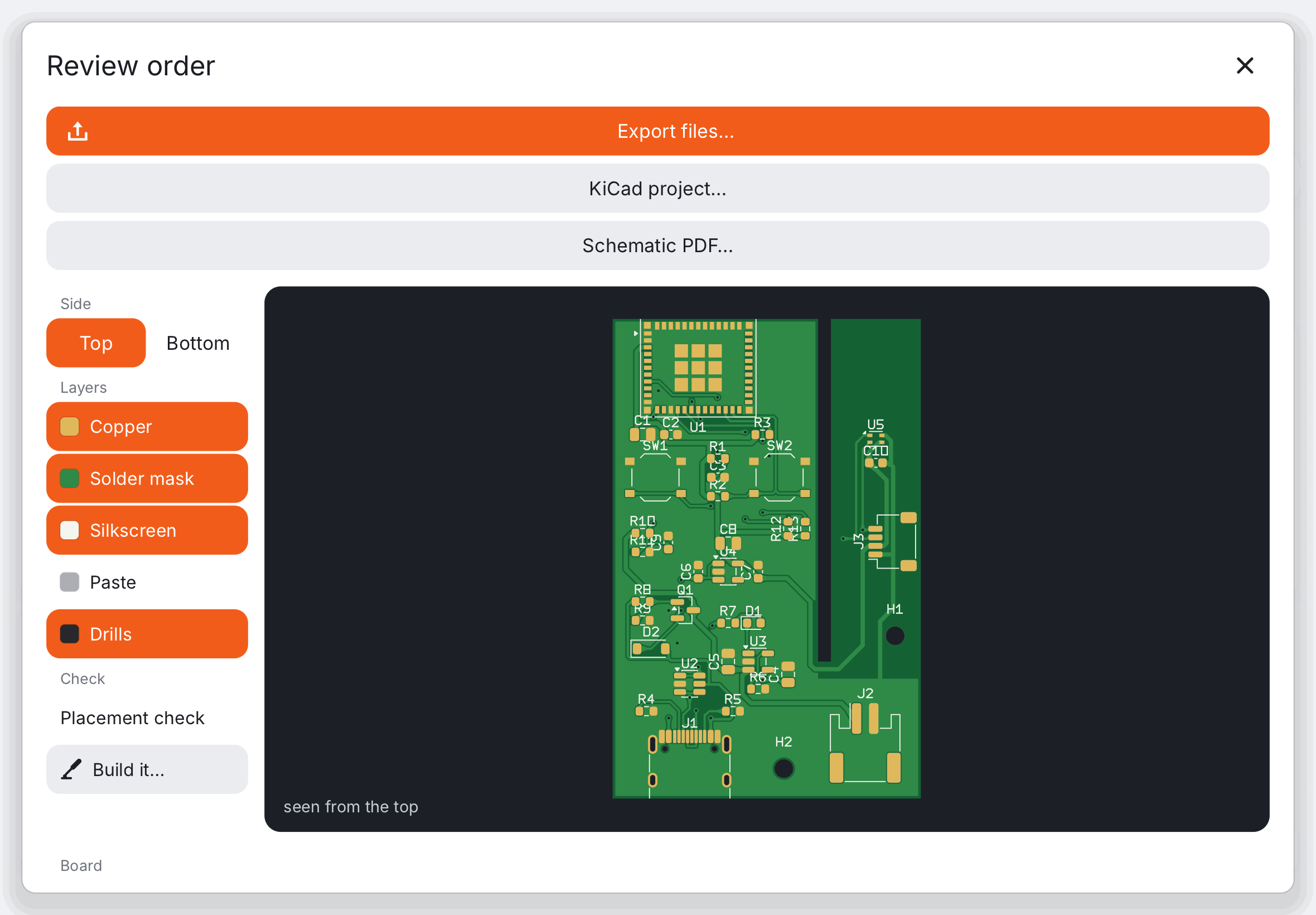
What the review shows#
- The board as the factory sees it. The picture is drawn from the exported Gerber files, not from the editor: green mask, gold pads, white silkscreen, holes. If something looks wrong here, it will be wrong on the board.
- The summary: size, copper layers, number of holes, the smallest drill and the narrowest track.
- The parts: each part with its JLCPCB number, stock, type (Basic or Extended) and price. Extended parts add a one-off feeder fee per part type. Parts without a number (switches, modules on headers) are for you to solder.
- Placement check: JLCPCB rotates some parts differently from the library. The review flags parts whose rotation is not verified; check them in the assembly preview.
Exporting#
Tap Export files…. The app writes a folder with:
- the Gerber and drill files as a zip (the board itself),
- the BOM (bill of materials: which parts),
- the CPL (where each part goes and how it is turned).
On the iPad the share sheet offers them, so you can save them to Files or send them on.
On the JLCPCB website#
- Upload the Gerber zip. Check that the preview, size and layer count match the review.
- The defaults are fine for a first board: 1.6 mm, HASL or ENIG, any colour.
- For assembly, turn on PCB Assembly, upload the BOM and the CPL, and check every part’s position in their viewer.
- Five boards is the minimum and usually costs little; shipping often costs more than the boards.
Prices in the review are an estimate: board, setup fee and shipping are not included. Things you solder yourself are listed in Build it in the PCB column, a checklist for hand assembly.
Next: Files, iCloud and export.