
Every part has two drawings: a symbol for the schematic and a footprint for the board (its pads and outline). Many also have a 3D model and a JLCPCB part number (LCSC), so the factory can solder them for you.
Finding a part#
- Components in the tool column are common parts (resistor, capacitor, LED, button…). Place one, then pick the exact variant with Change part…; the list shows parts JLCPCB keeps in stock.
- Library… (P) searches every symbol by name: “usb-c”, “esp32”, “sht4”.
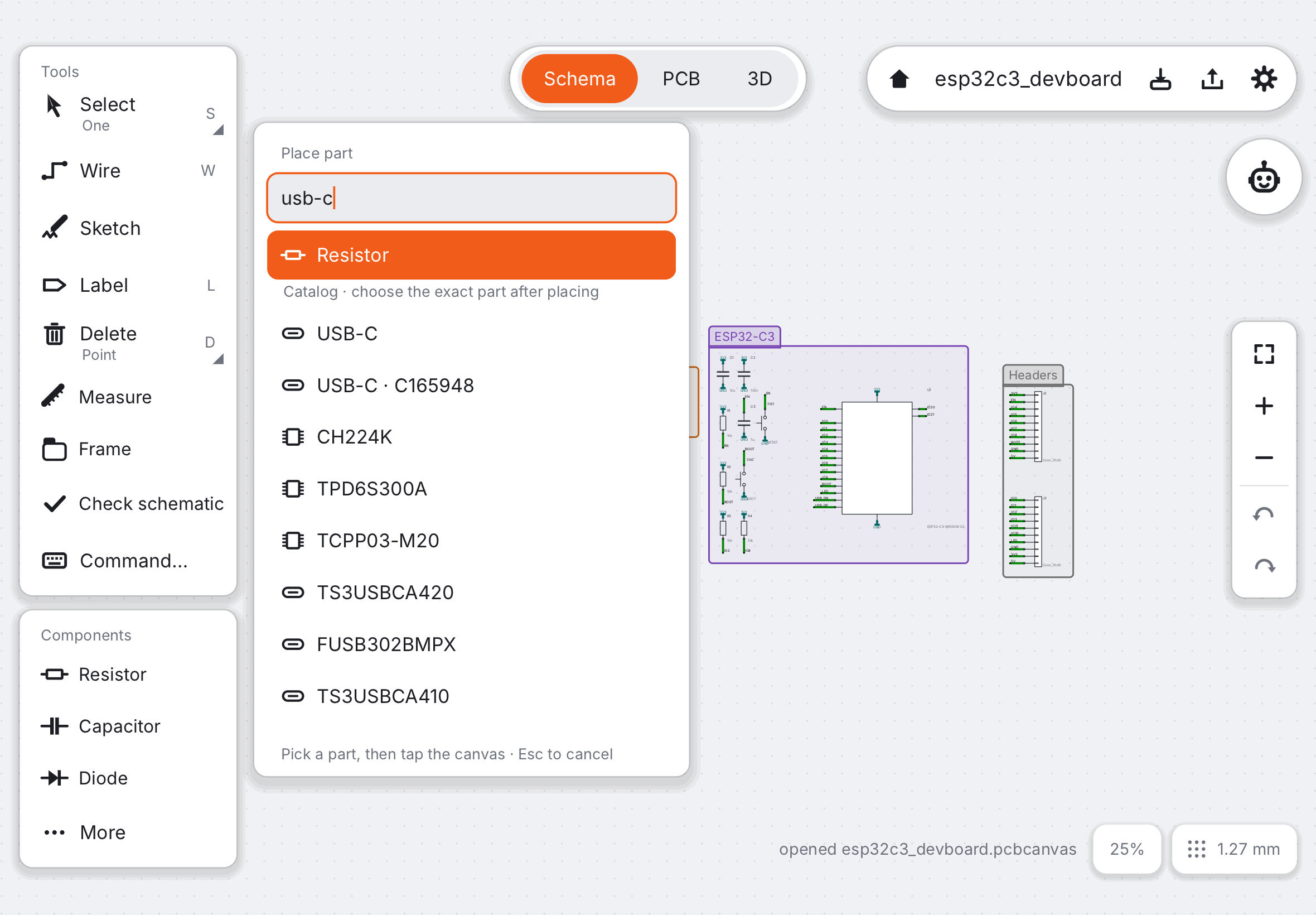
The bundled library is a curated part of the official KiCad libraries plus keyboard parts, with the licences listed in About.
Packs#
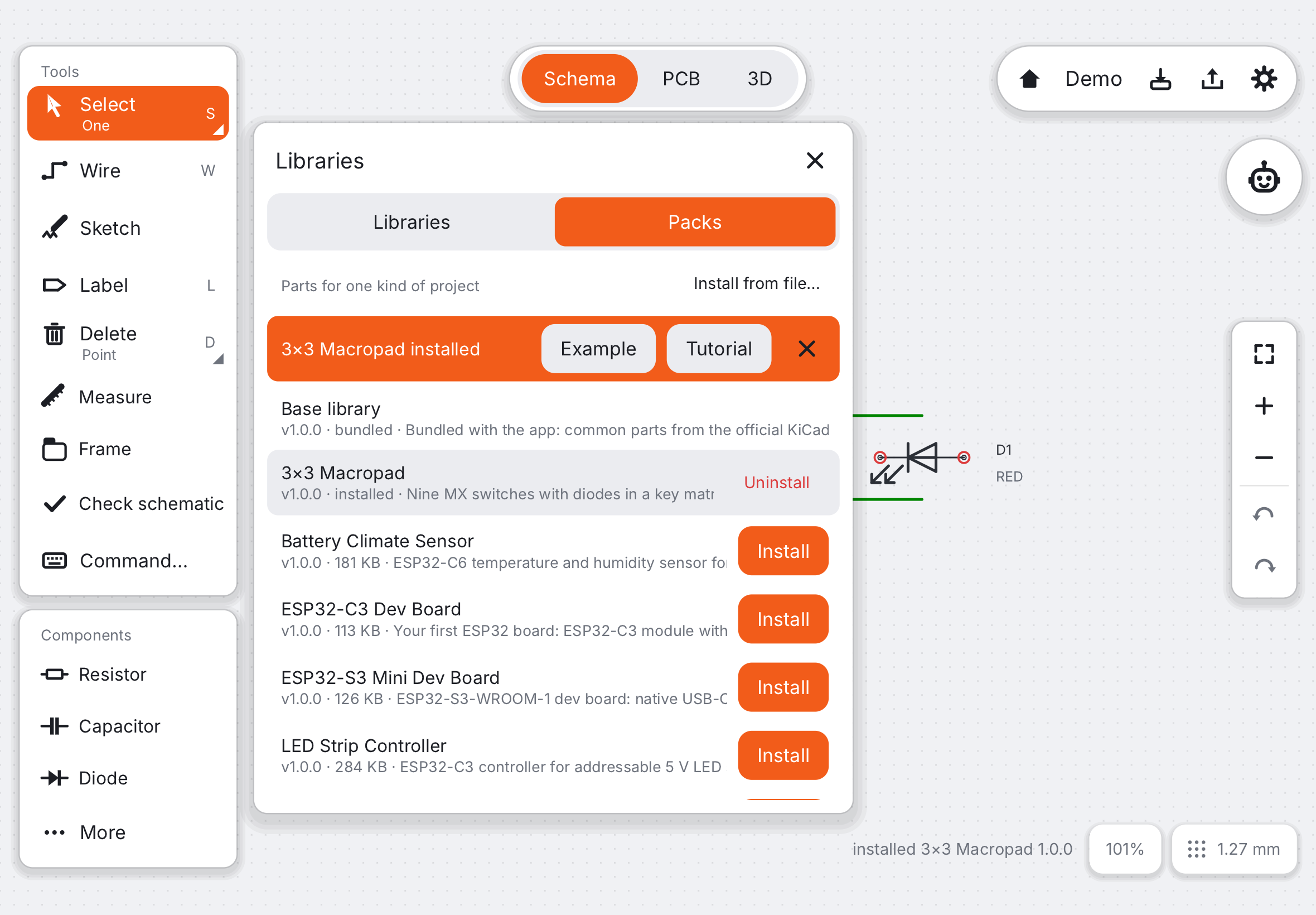
A pack is a bundle of parts, an example project and sometimes a tutorial, for example the macropad pack. Open Libraries… (at the end of Components) and the Packs tab to install or remove them.
Importing KiCad libraries#
Have a .kicad_sym or a .pretty folder from a manufacturer or a friend? Import it in Libraries…, or drag it from Files onto the canvas. Imported libraries are copied into the app and stay available in every project.
Making your own part#
- New part… is a wizard: choose a template (two-pin part, IC, connector, module), the pins and the package, and it draws the symbol and footprint.
- Edit… next to a library in the library manager opens the symbol and footprint editor: it edits both by hand, with the Pencil.
Check a new footprint against the datasheet’s drawing before you order: a wrong pad spacing is the classic first-board mistake.
Next: Net classes and track widths.