
Build a 6-key macropad
Six keys, six diodes and a XIAO RP2040, from an empty schematic to a JLCPCB order in 18 steps. With the full tutorial video and subtitles.
This is the first PCB Canvas tutorial: a small macropad with six mechanical keys in two rows of three, a diode per key and a Seeed Studio XIAO RP2040 as the brain. It covers the whole path, from an empty schematic to files you can upload to JLCPCB.
In the app, start a new project and tap the tutorial card next to the mode pill. Every step below is a stop in the player: do it yourself, or tap Show me and watch the app do it.
The pack holds the parts this board needs and a bigger 3×3 macropad example project.
Schematic#
1. Start a new project#
Every board starts as a schematic: the drawing of what connects to what. We begin with an empty one. The PCB is generated from the schematic later, so wiring mistakes are caught before any copper exists.
2. Place the XIAO RP2040#
Tap XIAO RP2040 in Components, then tap the canvas on the right to drop the module. The XIAO is a finished RP2040 board with USB-C: no crystal, flash or regulator to design.
3. Place six key switches#
Tap Key switch, then tap the canvas six times: two rows of three, left of the XIAO. A switch symbol is just two pins; which switch it is gets decided in the next step.
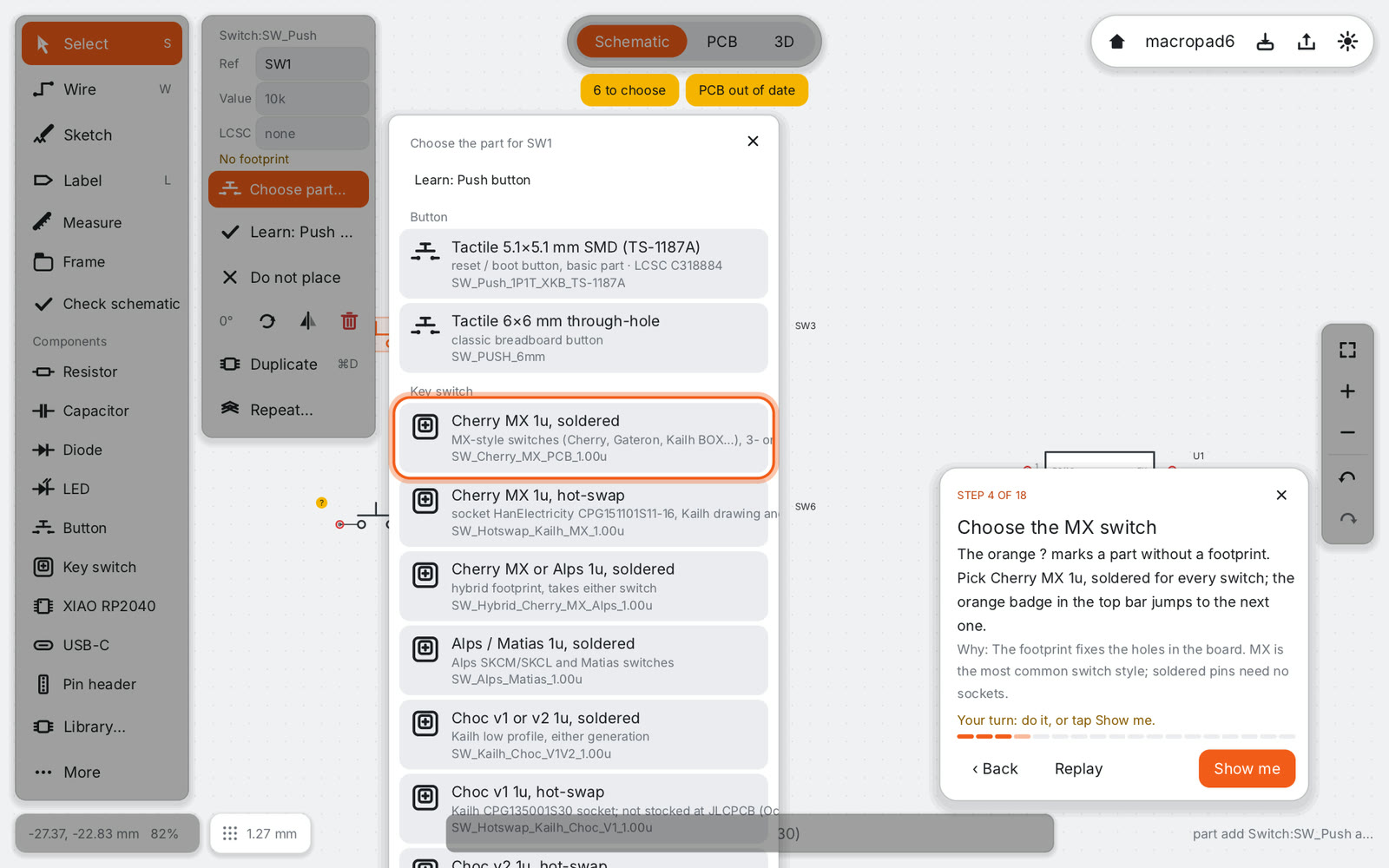
4. Choose the MX switch#
The orange ? marks a part without a footprint. Pick Cherry MX 1u, soldered for every switch; the orange badge in the top bar jumps to the next one. The footprint fixes the holes in the board. MX is the most common switch style, and soldered pins need no sockets.
5. Add a diode per key#
Tap Diode and place six of them, one right of each switch. Press R to stand a diode upright. Diodes stop ghosting: with several keys held, current can only flow one way through the matrix.
6. Choose 1N4148W#
Pick 1N4148W SOD-123 for each diode. It is a JLCPCB basic part, so assembly costs no extra feeder fee.
7. Wire each switch to its diode#
Choose Wire, then draw from the right pin of every switch to the top (anode) of its diode. Switch and diode in series form one cell of the matrix.
8. Columns COL0 to COL2#
Wire the left pins of each column together, then use Label to name the wires COL0, COL1 and COL2. Wires with the same label are connected even without a line between them, which keeps the drawing tidy.
9. Rows ROW0 and ROW1#
Join the bottom (cathode) ends of each row of diodes with one wire and label them ROW0 and ROW1. Two rows × three columns read six keys with five pins instead of six.
10. Connect the XIAO#
Add short wires on XIAO pins 1 to 5 and label them ROW0, ROW1, COL0, COL1, COL2. Label pin 13 GND as a power flag. Same name, same net: the labels connect the module to the matrix.
11. Check the schematic#
Tap Check schematic. It lists pins that touch nothing, shorted labels and parts without a footprint. Fixing a missing wire here takes a second; on a manufactured board it takes a new order.
Board#
12. Update the PCB#
In PCB mode, tap Update PCB. Every part arrives as a footprint, with thin ratsnest lines showing what still needs copper.
13. Draw the board outline#
Choose Outline and drag a 60 × 63 mm rectangle: room for three keys across, two down, and the XIAO below. The outline is what JLCPCB cuts. Keys sit 19.05 mm apart, the standard keyboard pitch.
14. Place keys on the 19.05 mm grid#
Drag each switch onto the board, 19.05 mm apart, with its diode in the gap on the left. The XIAO goes bottom centre, USB-C at the edge. Placement decides how easy routing is: keep each diode next to its switch.
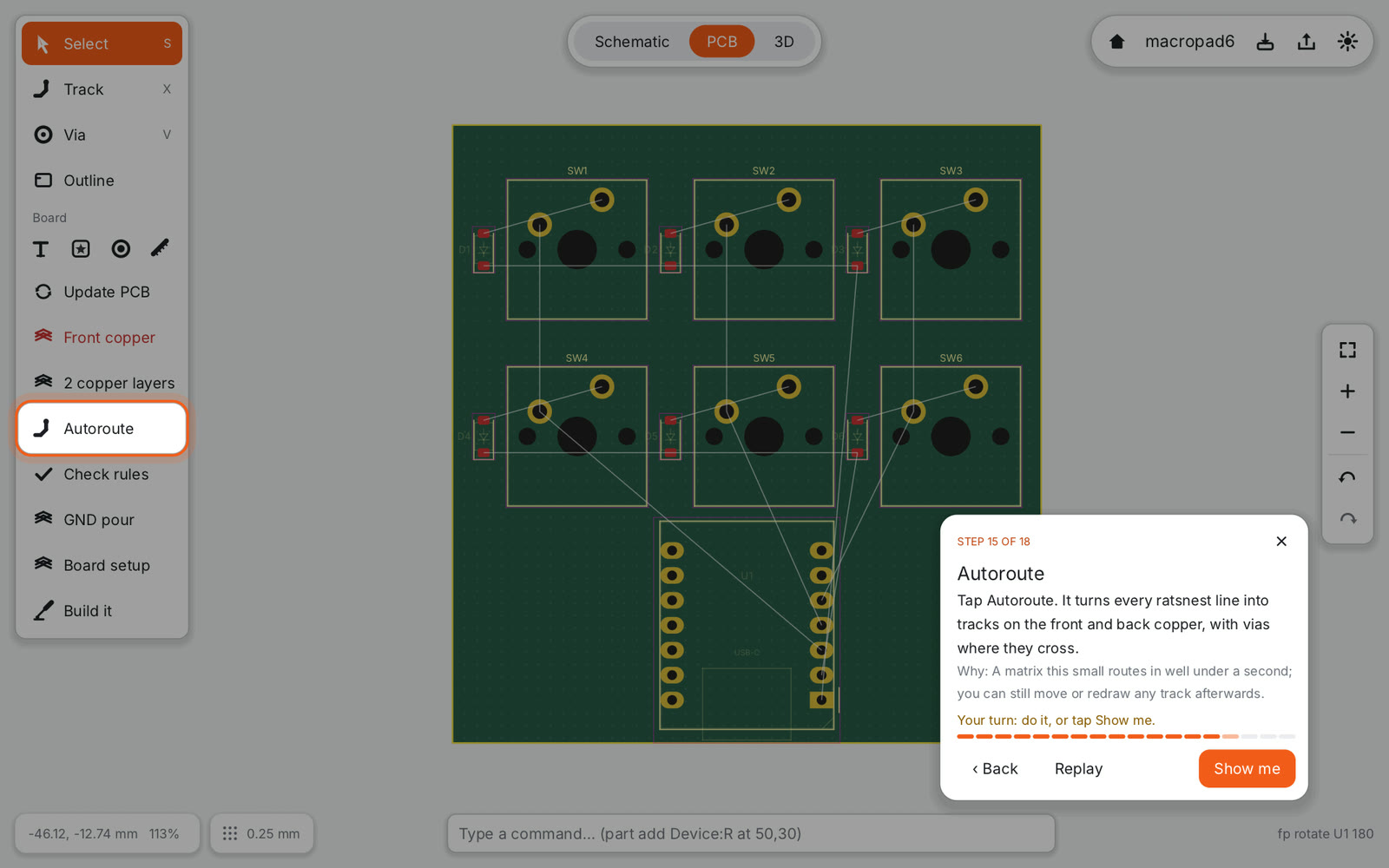
15. Autoroute#
Tap Autoroute. It turns every ratsnest line into tracks on the front and back copper, with vias where they cross. A matrix this small routes in well under a second, and you can still move or redraw any track afterwards.
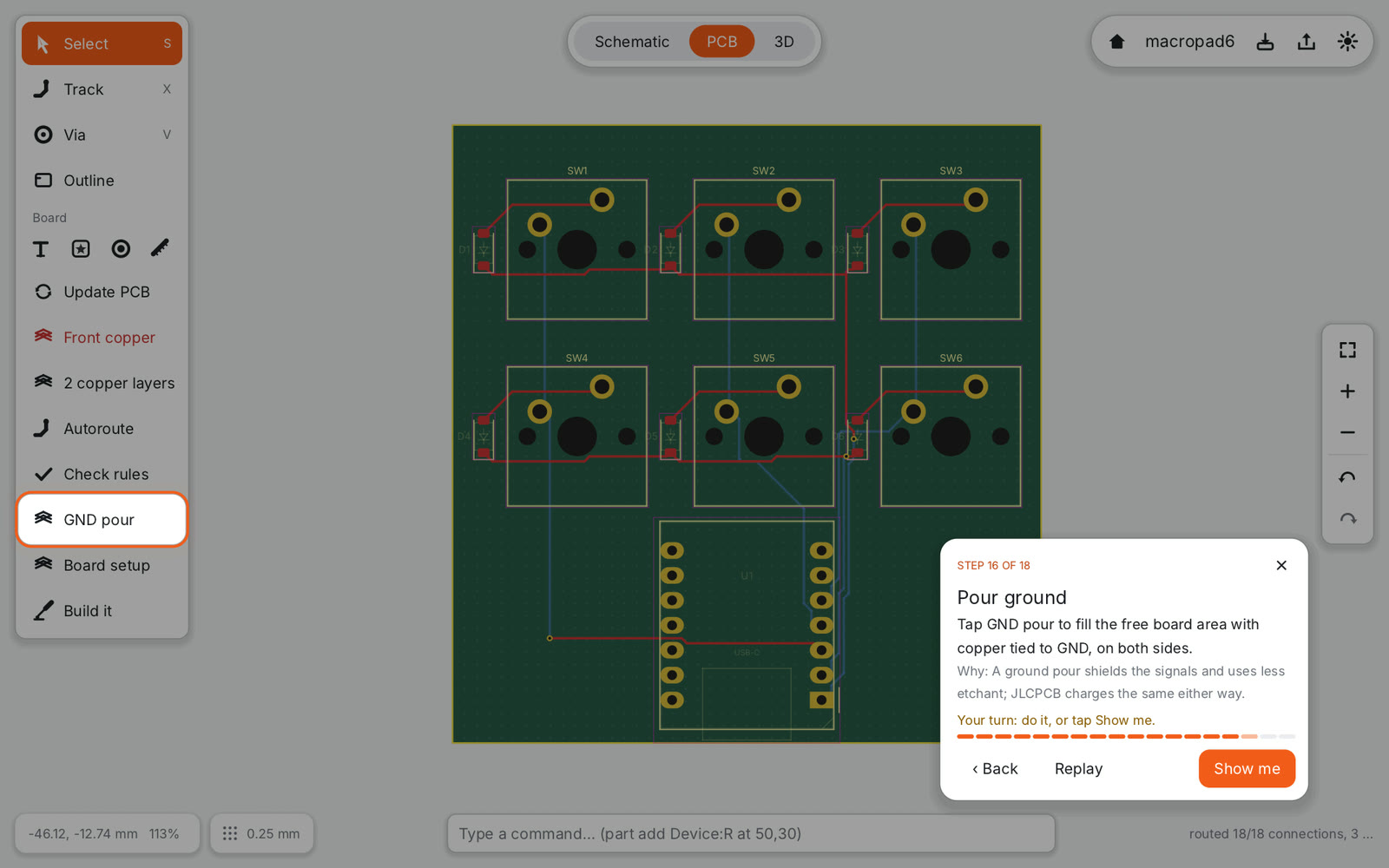
16. Pour ground#
Tap GND pour to fill the free board area with copper tied to GND, on both sides. A ground pour shields the signals and uses less etchant; JLCPCB charges the same either way.
Check and order#
17. Check the rules#
Tap Check rules. Clearances, track widths, drill sizes and unrouted nets are checked against JLCPCB’s limits.
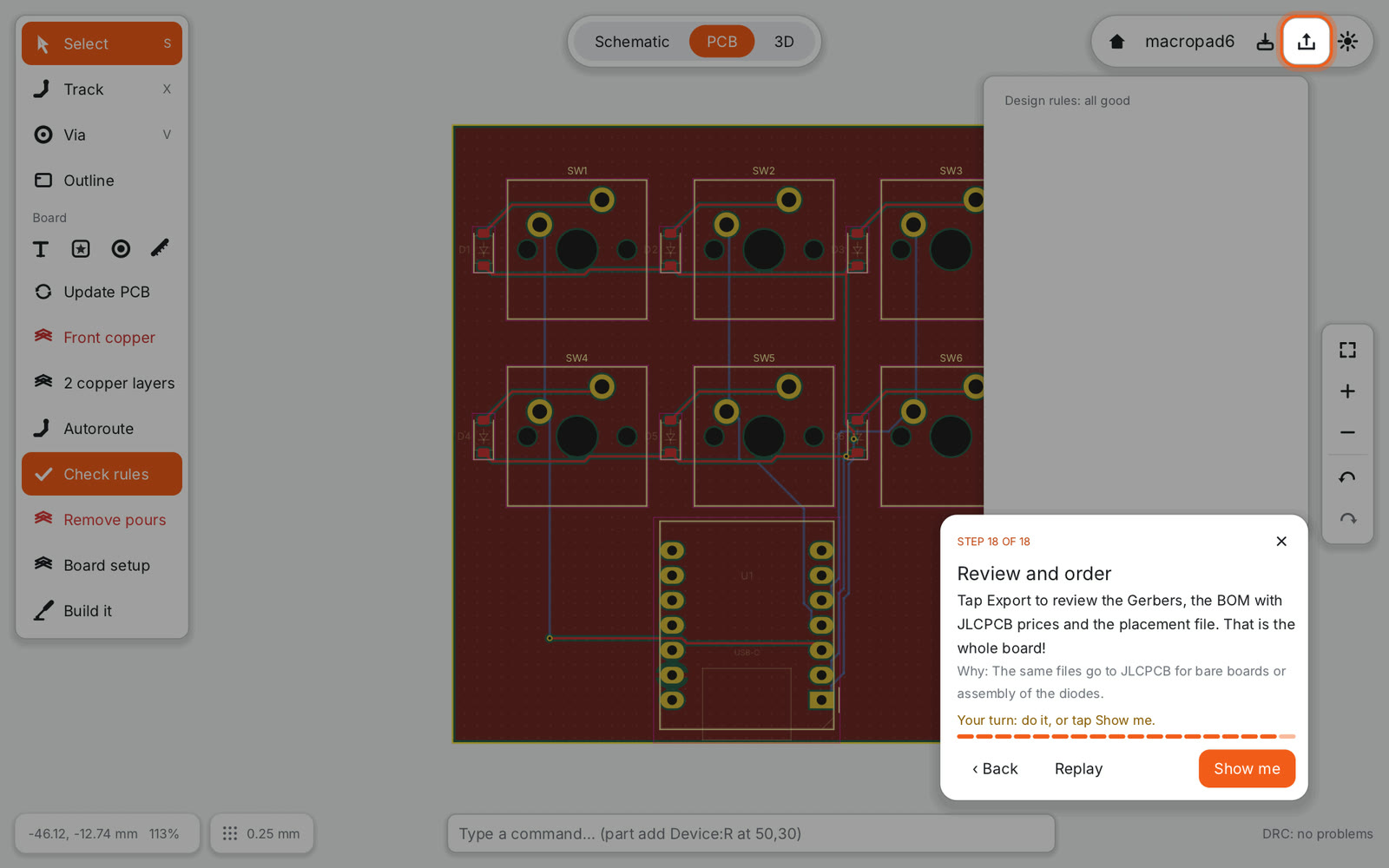
18. Review and order#
Tap Export to review the Gerbers, the BOM with JLCPCB prices and the placement file. That is the whole board! The same files go to JLCPCB for bare boards or for assembly of the diodes.
What you need besides the board#
- six MX-style switches (Cherry, Gateron, Kailh and others with the same footprint) and keycaps;
- a Seeed Studio XIAO RP2040, soldered on its castellated pads or on pin headers;
- six 1N4148W diodes, or let JLCPCB assemble them.
The tutorial, the screenshots and this video are all generated from one tutorial file, so when the app’s interface changes, they are rebuilt with one command and never go stale.